Content Management Overhaul
Overhauled content management for both Modrinth Hosting servers and Modrinth App instances.
Posted on March 17, 2026 Modrinth Team
Today we’re shipping a big update to Modrinth Hosting. We’ve completely overhauled server onboarding and content management.
All these improvements have also made their way to instances in the app so both experiences will stay the same moving forward.
TL;DR
- New server onboarding and instance creation in the app
- Completely redesigned content tab with bulk actions, filtering, and sorting
- Modpack content is now visually separated
- Improved content installation (better dependency and client-side mod handling)
- New server reset flow
- Installation settings from app instances are now on servers
Design Goals
Servers are very similar to a single instance in the app when it comes to installing and managing content. The content tab on Modrinth Hosting was much more primitive than instances which made it harder to keep features consistent.
Our goal was to bring those two experiences together.
We took everything we learned from working on instances, looked at what was missing, and rebuilt it from the ground up so the same implementation can power both.
Because of that, many of the features in this post are new to Modrinth Hosting but already familiar to app users. Modrinth App instances also picked up a few upgrades along the way, so you will see some improvements there too.
Server Onboarding
Simplifying server setup is one of the main goals for Modrinth Hosting. We want setting up a modded server for a group of friends to be simple and just work.
Once your server is ready you’re greeted with a short onboarding screen that explains what comes next. Clicking setup server opens a guided setup flow that walks you through choosing your content and configuring your world.
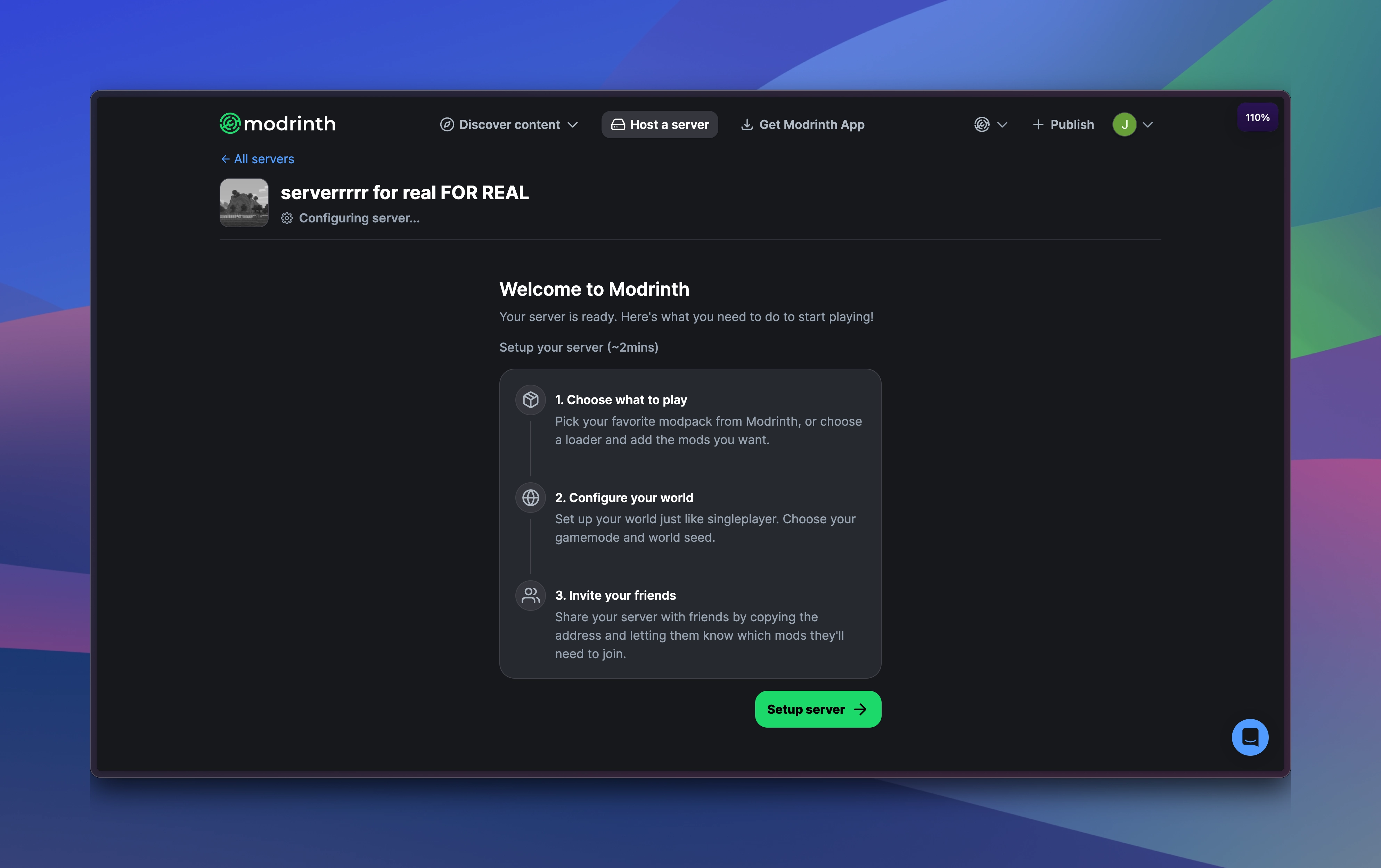
You can set up your server in three ways:
- Modpack base: start from your favorite modpack.
- Custom setup: choose a loader and game version then install individual mods or plugins.
- Vanilla Minecraft: classic vanilla with optional datapacks.
After choosing an option you complete a final screen to creating a singleplayer world in Minecraft. Here you can configure a few server.properties settings before the world is generated when the server starts.
Servers also have a much nicer reset flow in your options. You can reset the server at any time and re-enter onboarding to choose new content or generate a fresh world.
Content Tab
Along with the new onboarding flow comes a redesigned content tab.
The entire page has been refreshed to better match Modrinth’s current design language. Alongside the visual update we also shipped several functional improvements for servers:
- Installed projects are now listed in a table and support bulk actions
- More filtering options on projects
- Installing content should work more reliably
- Dependencies now resolve multiple layers deep (for example a mod that depends on another mod which depends on something else)
- We are experimenting with better handling for client-side mods. For modpacks we install client-side mods and let the loader disable them. We also maintain our own small naughty list that we pre-disable to handle some edge cases
Servers + App Improvements
This overhaul also brought several improvements to instances.
Content installed through a modpack is now visually separated. The linked modpack appears as its own card with a modal where you can view and disable its content. This sets us up for a future where updating a modpack won’t remove any mods you add on top.
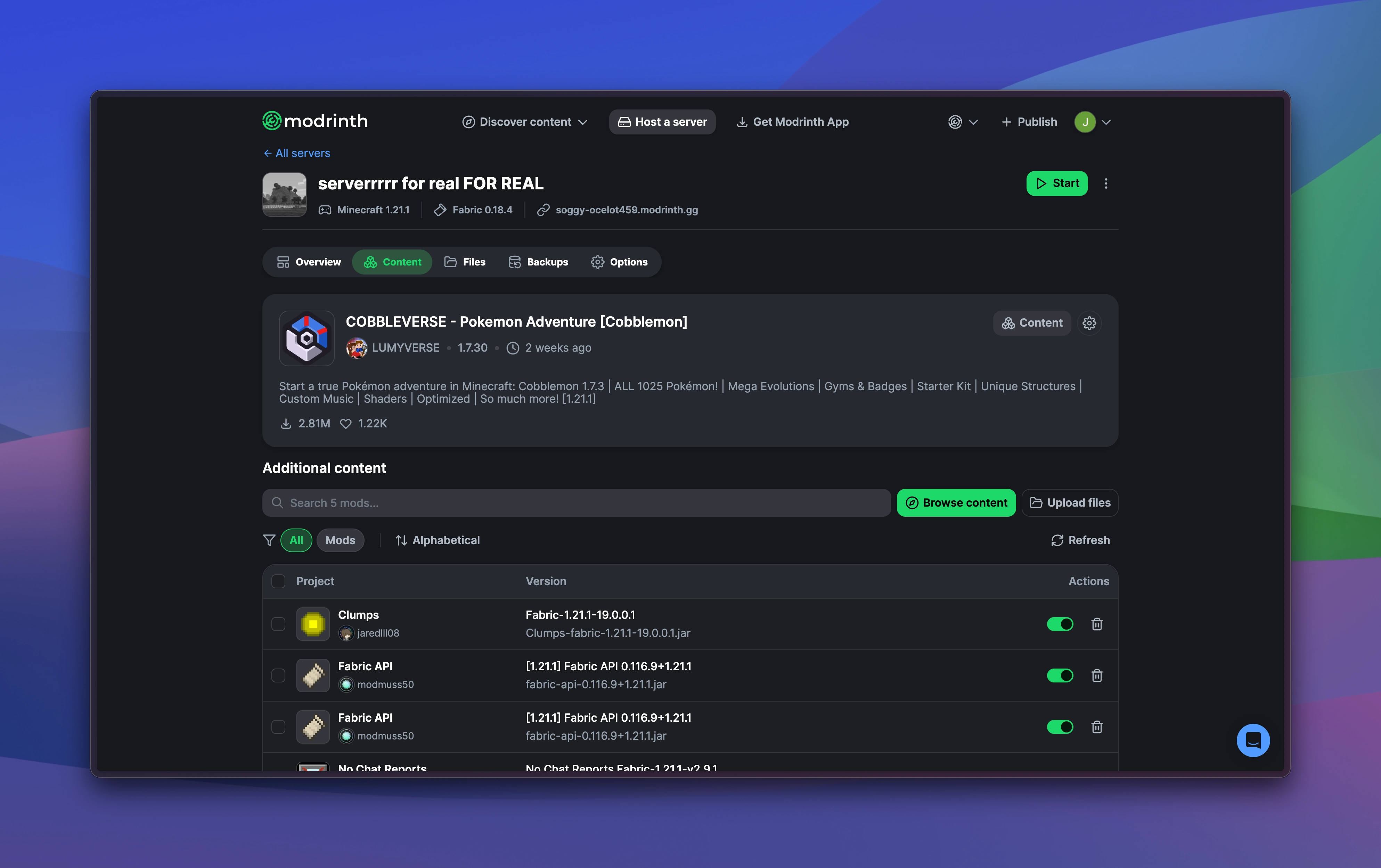
A few other upgrades:
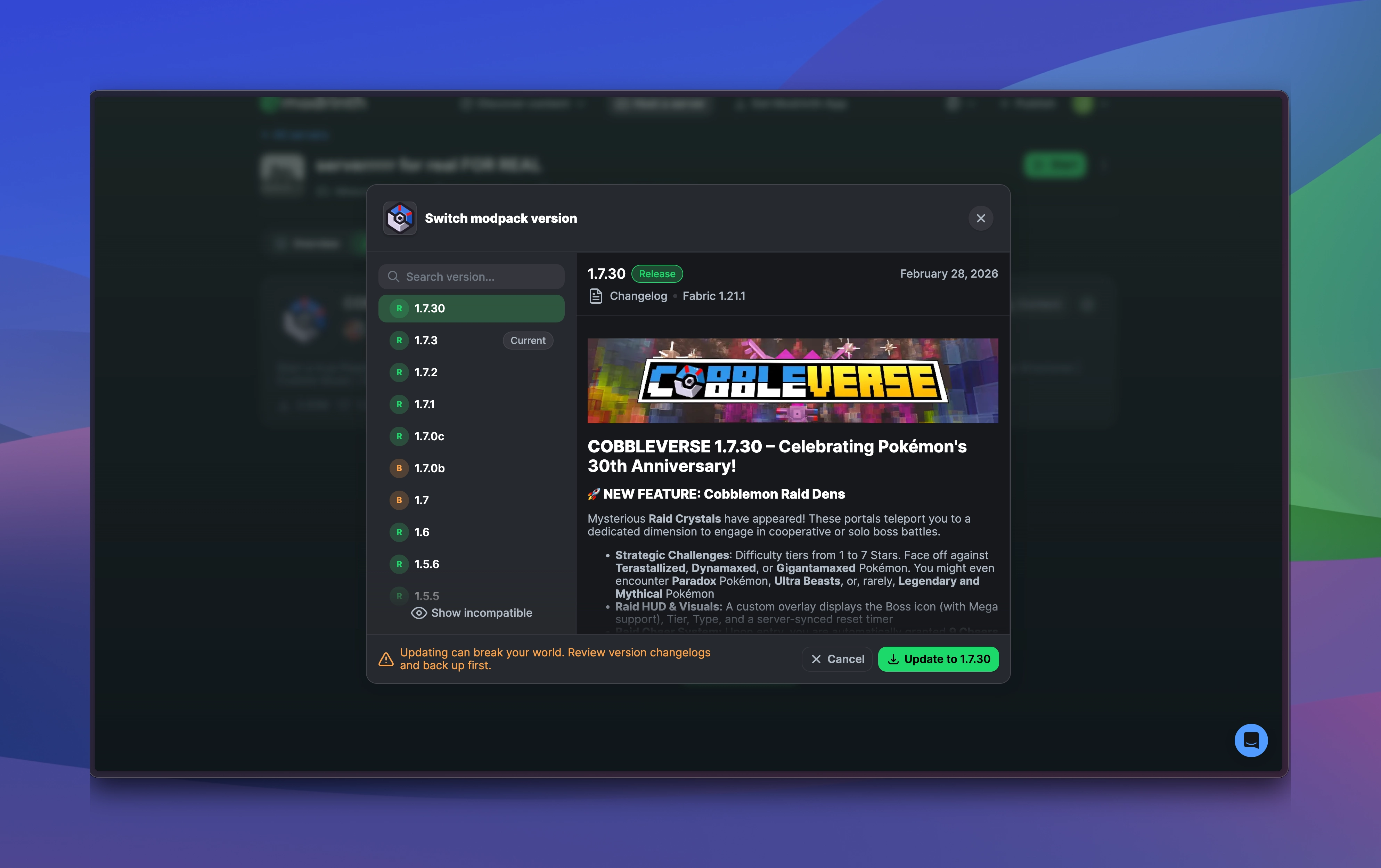
- New update project modal where you can read changelogs and choose the version to install
- Project sorting (alphabetical and date added)
- The table now uses infinite scroll instead of pagination so bulk actions work better
- New sticky bulk action bar so actions stay visible while scrolling
- Installing new content no longer causes the list to jump around
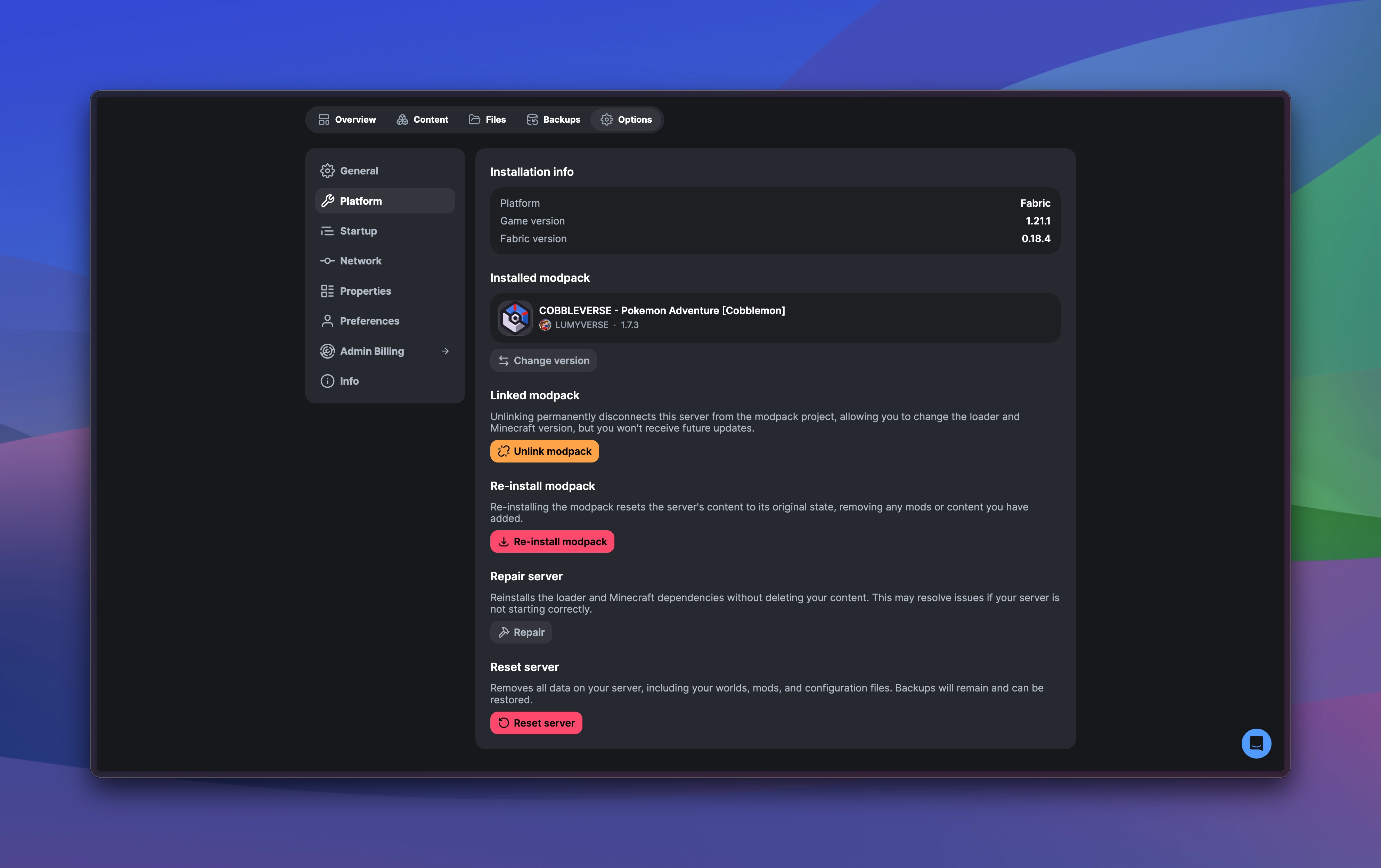
Installation Settings
Additionally, we brought the installation settings from instances over to servers. The available options vary slightly depending on how your server is set up.
Modpack
- Installation cannot be edited
- Unlink modpack
- Unlinking permanently disconnects this server from the modpack project, allowing you to change the loader and Minecraft version, but you won't receive future updates.
- Reinstall modpack
- Re-installing the modpack resets the server's content to its original state, removing any mods or content you have added.
Custom
- Switch between vanilla and modded
- Change game version
Both
- Repair installation
- Reinstalls the loader and Minecraft dependencies without deleting your content. This may resolve issues if your server is not starting correctly.
—
That’s everything from us! Thank you for choosing Modrinth Hosting.